Buffering is a symptom, not a single fault. The cause can sit in the stream source, account, player, device, local Wi-Fi, router, ISP route or household traffic.
Changing everything at once destroys useful evidence. Use the order below to isolate one layer at a time.
Define the Pattern First
Note whether the issue affects one channel, one category, all live TV, only VOD, only high-resolution streams or every service on the device. Also record the time and whether another household device was downloading or gaming.
- One source only
- One content type
- One device only
- Wi-Fi only
- Evening only
- All internet services
Test Another Stream and Another Content Type
Open two unrelated live channels and one on-demand title. If only one source fails, a factory reset or router change is unlikely to help. If everything fails, continue down the stack.
Restart the Smallest Layer
Close and reopen the player first. Then restart the streaming device. Restart the router only after the smaller tests. This sequence shows which component actually restored playback.
Compare Ethernet With Wi-Fi
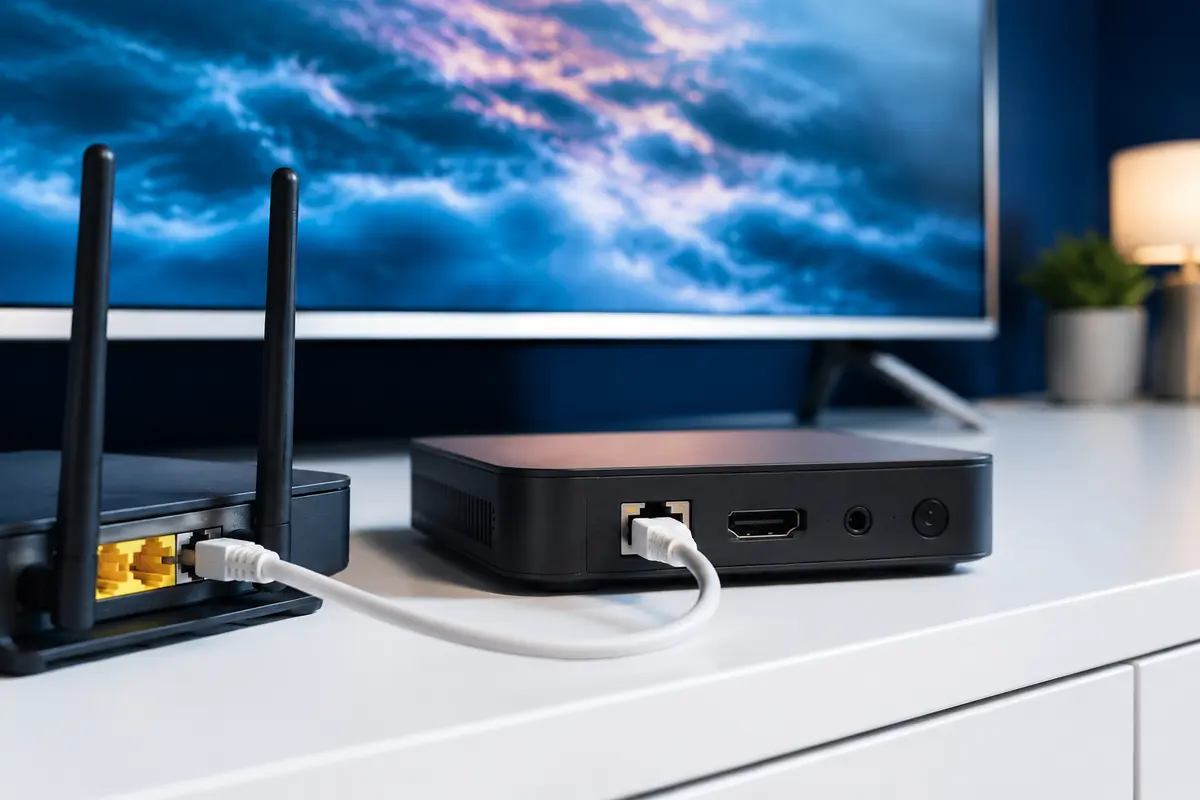
Run a temporary Ethernet cable or use a compatible adapter. If buffering disappears, focus on wireless signal, interference, band selection and router placement rather than buying more broadband speed.
If Ethernet and Wi-Fi fail identically, move on to device, player, ISP-route and source checks.
Measure Stability, Not Only Peak Speed
A single fast speed-test result can hide packet loss, jitter or sharp drops. Repeat tests near the television during the problem window and compare with a wired device.
HD often starts around 10 Mbps, Full HD around 15 Mbps and 4K around 25 Mbps per stream, but bitrate and overhead vary. Leave capacity for other household traffic.
Check Device and Player Load
Free storage, close background apps, update the player and system, and try a lower stream quality. Older hardware may struggle with codecs or high-bitrate video even on a fast connection.
Check Router and ISP Factors
Disable unnecessary downloads, test another DNS resolver only if name resolution is the problem, and compare the same setup at another time. A VPN can change routing but can also reduce speed; it is a diagnostic comparison, not a universal cure.
Give Support Reproducible Evidence
Send the device model, player name/version, connection type, affected channel or title, exact time, error message and results of Ethernet versus Wi-Fi. This is far more useful than a screenshot of a spinning icon.
Build a Simple Buffering Test Matrix
Create four rows—affected live source, unrelated live source, on-demand title and another mainstream streaming service—and two columns for Wi-Fi and Ethernet. Test each for five minutes at the same resolution. The pattern is more useful than a single speed-test screenshot because it separates content, device and network scope.
Record the lowest observed speed near the screen, but also note freezes, audio continuity and time to recover. A stable lower result can perform better than a high peak followed by repeated drops.
- Same device and player
- Same test window
- No background download
- Router and device clocks correct
- One change between tests
Changes to Avoid During Diagnosis
Do not factory-reset the television, buy a new router, switch DNS, install a VPN and change the player at the same time. Even if playback returns, you will not know which change mattered and may introduce a security or performance problem.
Avoid treating every failure as buffering. An authentication message, unsupported codec, black screen with audio and a source that never opens require different evidence. Capture the exact behaviour and reverse temporary tests when they do not help.
Only access content you are legally entitled to view. App, category, guide, quality and replay availability can change by device, region, source and account.