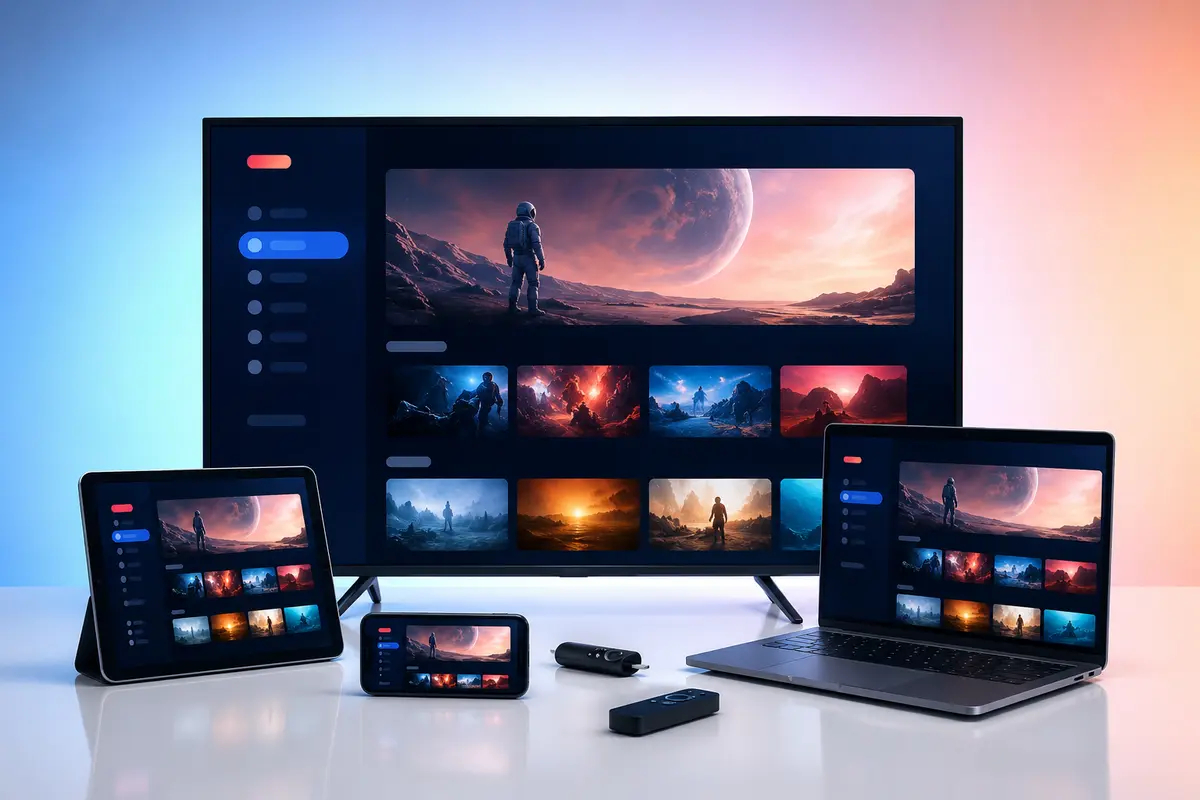
Smart TV setup looks simple because no extra box is visible, but app-store support varies sharply by manufacturer, television year and country. Identify the operating system before choosing a player.
This guide separates the steps that apply to most televisions from the manufacturer-specific checks that often cause failed installations.
Identify the Television Platform
Samsung commonly uses Tizen, LG commonly uses webOS, and many Sony, Philips, TCL and other models use Android TV or Google TV. Model names alone are not enough; check the settings menu for the software platform and version.
- Write down the full model number
- Confirm the operating system and software version
- Check the app-store region
- Install pending television updates
Find a Compatible Player in the TV Store
Search the television's own app store first. Availability can differ between two televisions from the same brand because older models stop receiving app support.
If no suitable player is available, adding a maintained streaming device is usually cleaner than trying to force an unsupported television installation.
Prepare the Login Details
Confirm whether the account uses a username/server form, M3U URL or portal. Enter the address exactly and avoid typing it with the television remote when a secure approved companion method is available.
Never send a photograph of credentials to a public group or store them in a shared cloud note.
Complete the First Sync
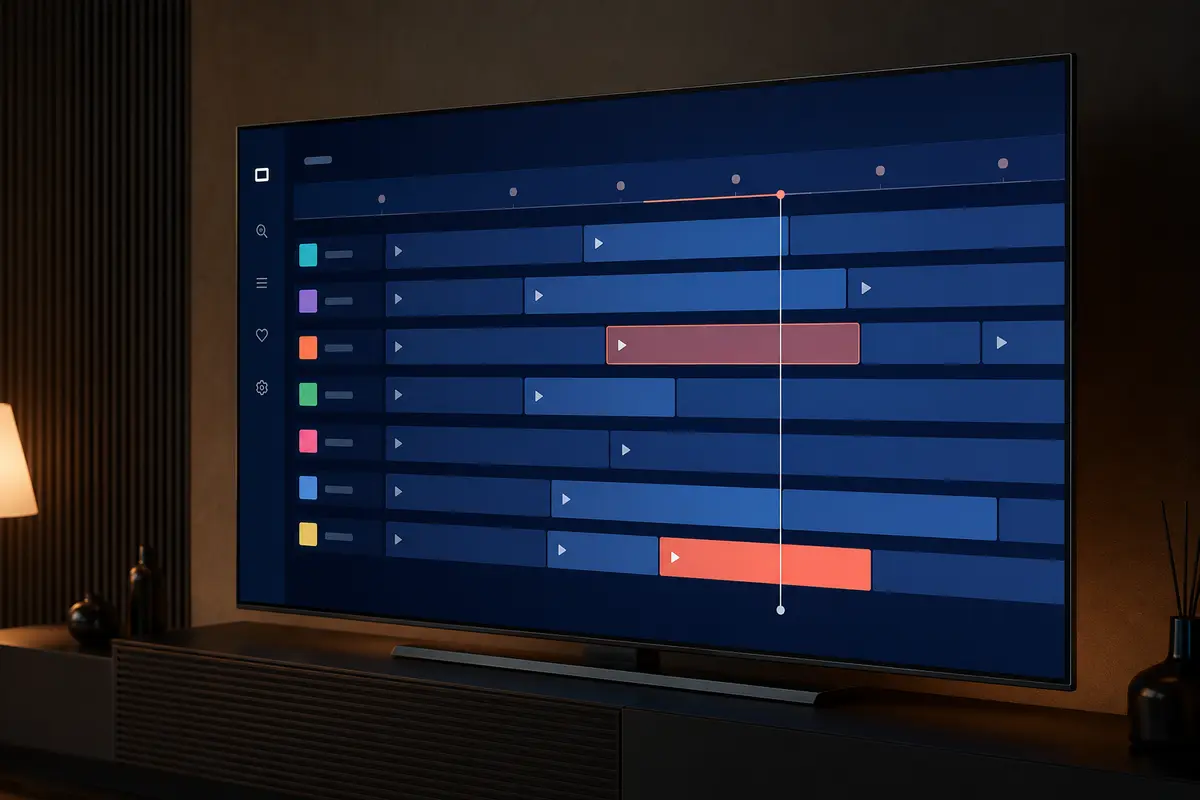
Allow live categories, on-demand metadata and EPG data to load fully. Large catalogues can make an older television feel slow during the first refresh. Test navigation before deciding whether the network is the problem.
- Check live TV
- Open a movie
- Open a series episode
- Compare audio tracks
- Refresh the programme guide
- Save and reopen a favourite
Improve Smart TV Network Stability
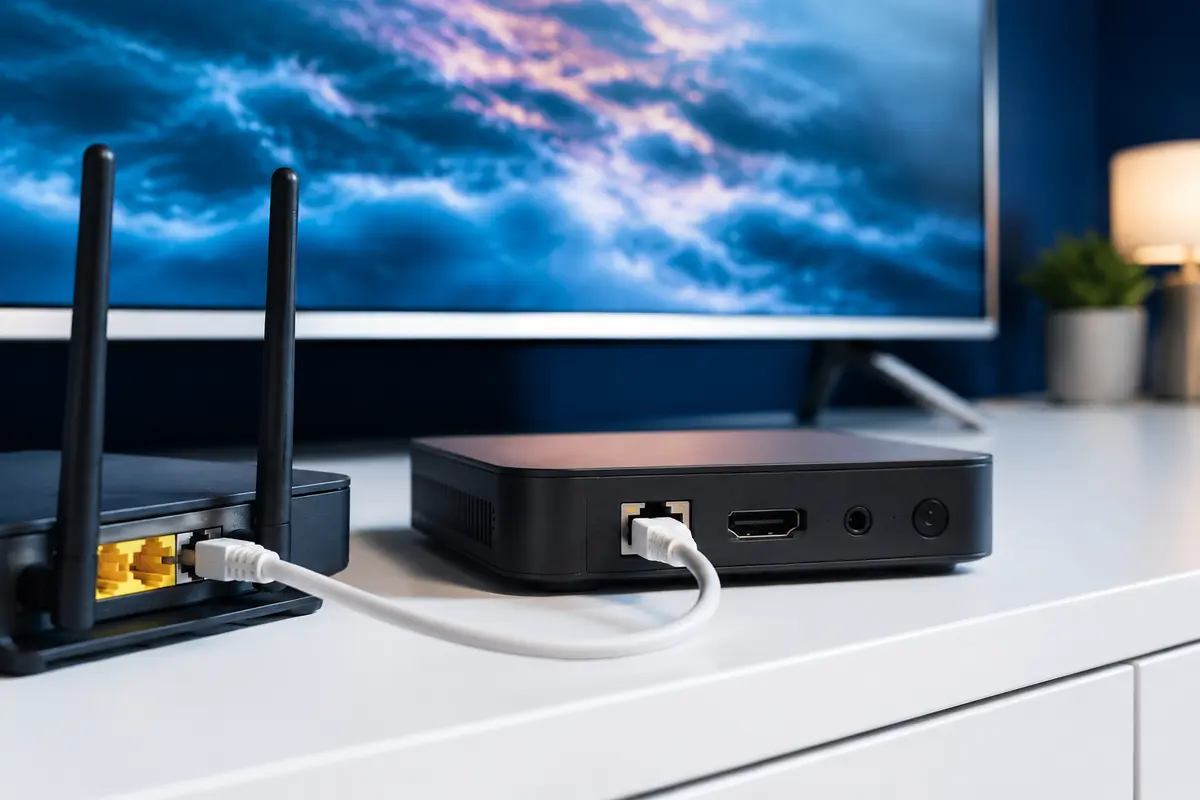
Use wired Ethernet if the television has a reliable port and the router is nearby. Otherwise choose the stronger modern Wi-Fi band, keep the television away from interference and avoid placing the router inside a cabinet.
Some television Ethernet ports are slower than their Wi-Fi radios, but consistency often matters more than headline speed. Compare both on the same stream.
Handle Storage and App Slowdowns
Delete unused apps, restart the television fully rather than leaving it in standby, and clear the player's cache if the platform offers that control. Avoid repeated full playlist refreshes while another update is still running.
When an External Streaming Device Is Better
A Fire TV, Android/Google TV box or other maintained device can provide newer apps, more storage and stronger codec support than an ageing television. It also makes replacement easier without changing the screen.
Smart TV Trial Checklist
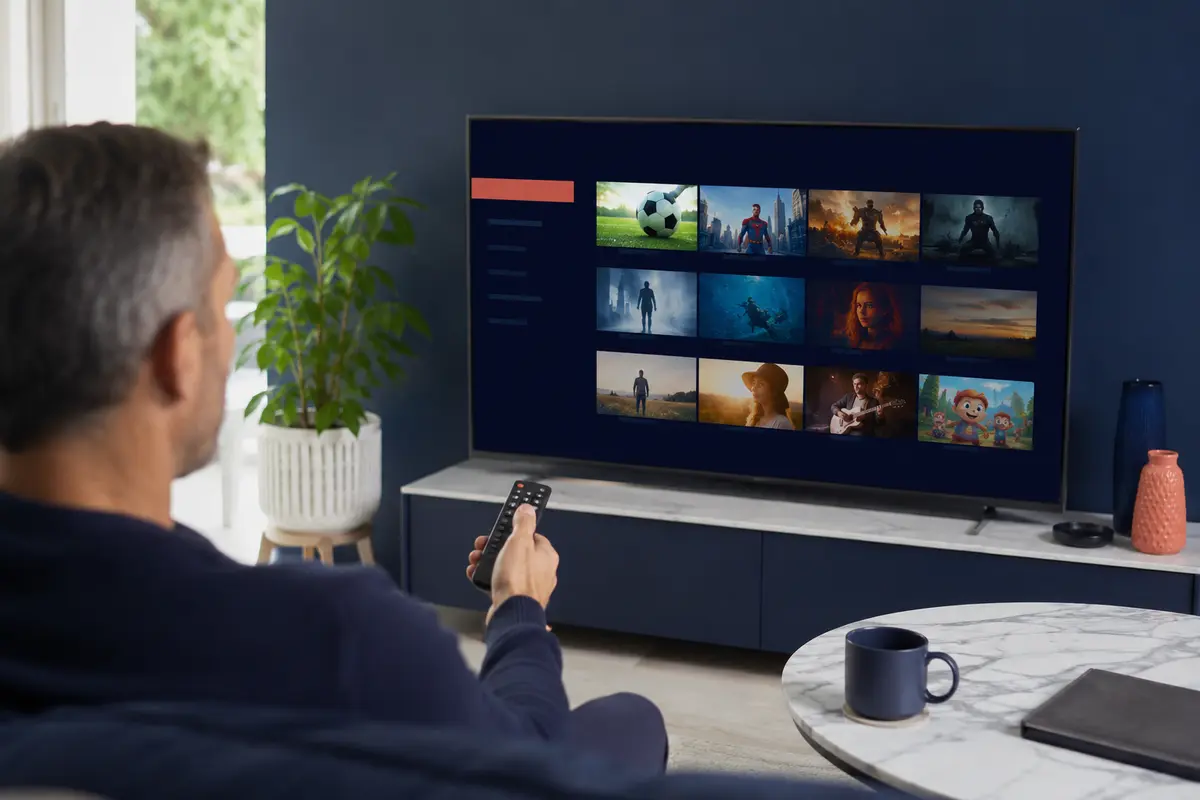
Use the trial on the television itself. Confirm remote navigation, guide readability from the sofa, lip sync, subtitles, high-motion playback and evening Wi-Fi performance. A phone test cannot answer those television-specific questions.
Smart TV Model-Year Checklist
Two televisions carrying the same brand can use different operating-system generations and app stores. Photograph the model label for your own records, check the support page for its final software version and confirm available storage before a trial begins. This prevents instructions for a newer television from being applied to an older one.
After installation, turn the television fully off and on rather than relying only on standby. Then repeat guide, live, movie and series tests to confirm the player restores its local data correctly.
- Model and year recorded
- Store country confirmed
- System update installed
- Player publisher checked
- Remote focus tested
When to Add an External Device
An external streaming device is worth considering when the television store has no maintained player, the interface reloads constantly, storage is permanently full or important codecs are unsupported. It separates the viewing software from the display and can be replaced without replacing the screen.
Compare the cost with the remaining life of the television and choose certified hardware with ongoing updates. Keep the original television software patched because it still controls network, HDMI and display behaviour.
Only access content you are legally entitled to view. App, category, guide, quality and replay availability can change by device, region, source and account.