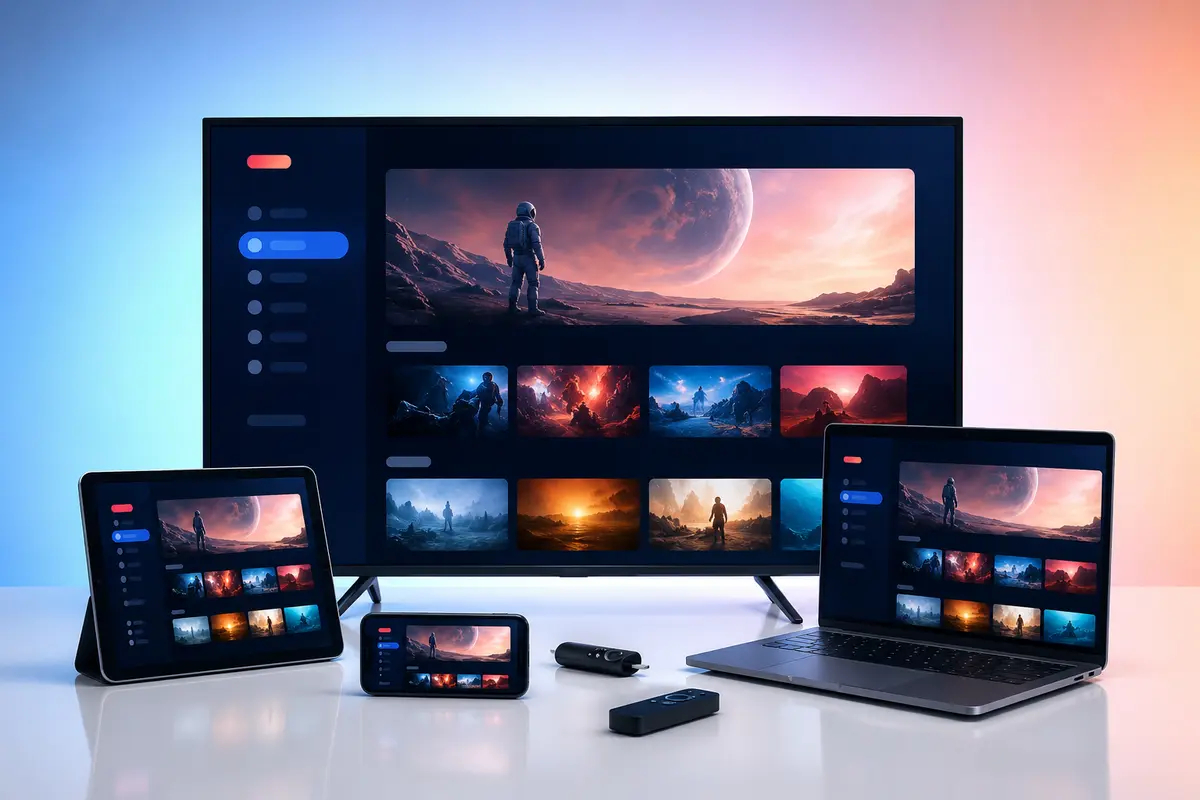
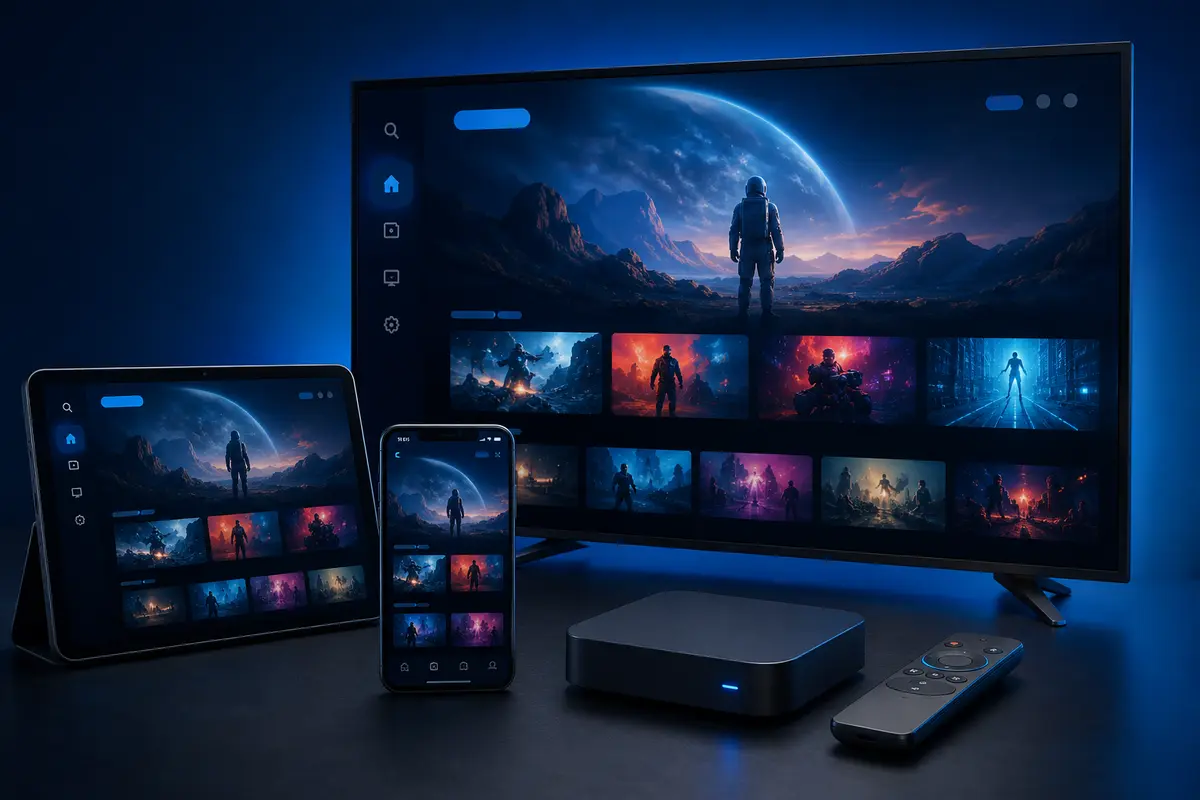
Android TV and Google TV provide a broad range of player choices, but that flexibility makes it important to check the publisher, permissions and login format before installation.
The following process works for many televisions and certified boxes while keeping account security and remote usability in view.
Check the Device and Free Storage
Open device settings, note the model and software version, install system updates and confirm that enough storage remains for app data, logos, EPG and on-demand metadata.
- Update Android TV or Google TV
- Remove unused apps
- Restart after updates
- Confirm date, time and time zone
Install a Verified Compatible Player
Use the Play Store listing where possible and check that the app is designed for television, not only touch screens. Review the developer name and recent update information before installing.
Do not assume that a player with a familiar-looking icon is the same application recommended by support.
Select the Correct Login Format
Use the account method provided after activation. A username/server login usually organises live, movie and series sections automatically; M3U may require a separate guide URL; portal access is device-specific.
Avoid third-party credential converters. They can expose a playlist address or password.
Configure Remote and Player Settings
Check channel change behaviour, the back button, guide layout, subtitles, audio track selection and external-player options. Keep hardware decoding enabled unless a specific stream demonstrates a repeatable compatibility problem.
Refresh EPG and Categories
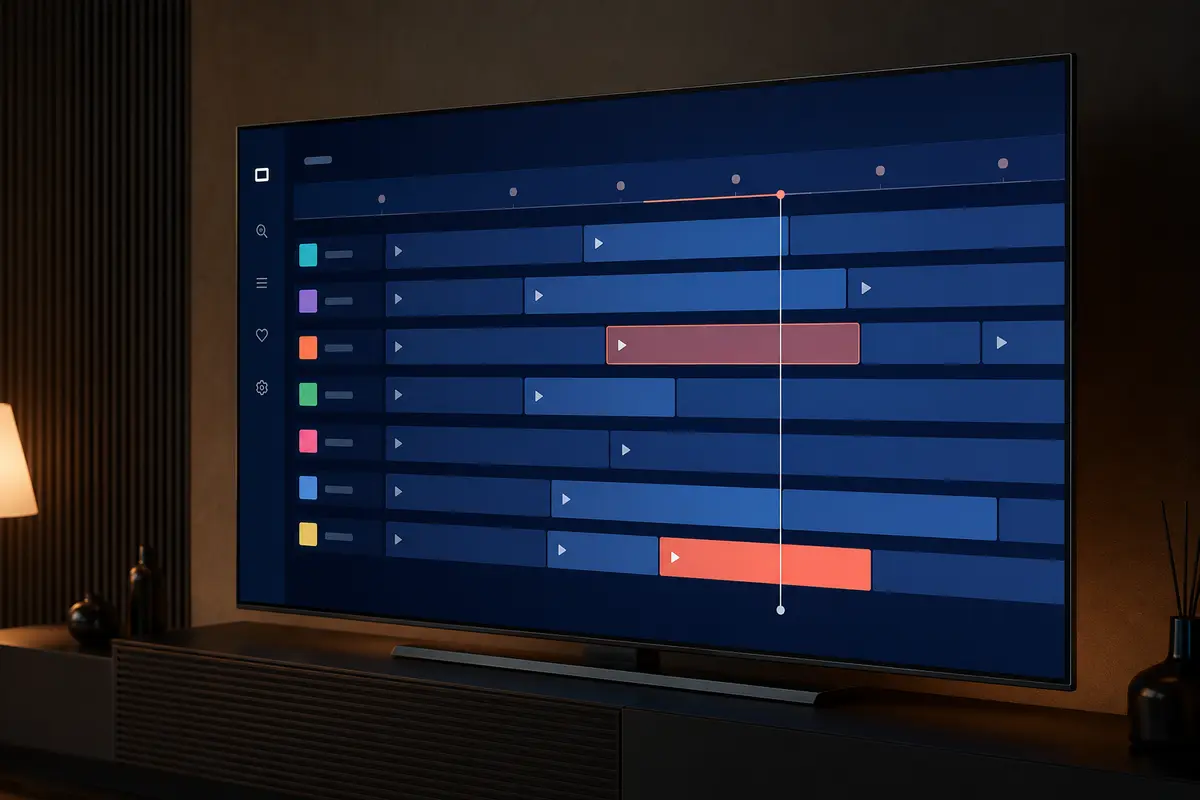
Set the correct time zone, trigger one playlist refresh and then refresh EPG if the app separates them. Repeatedly clearing and reloading during the first sync can extend the process rather than fix it.
Optimise Playback
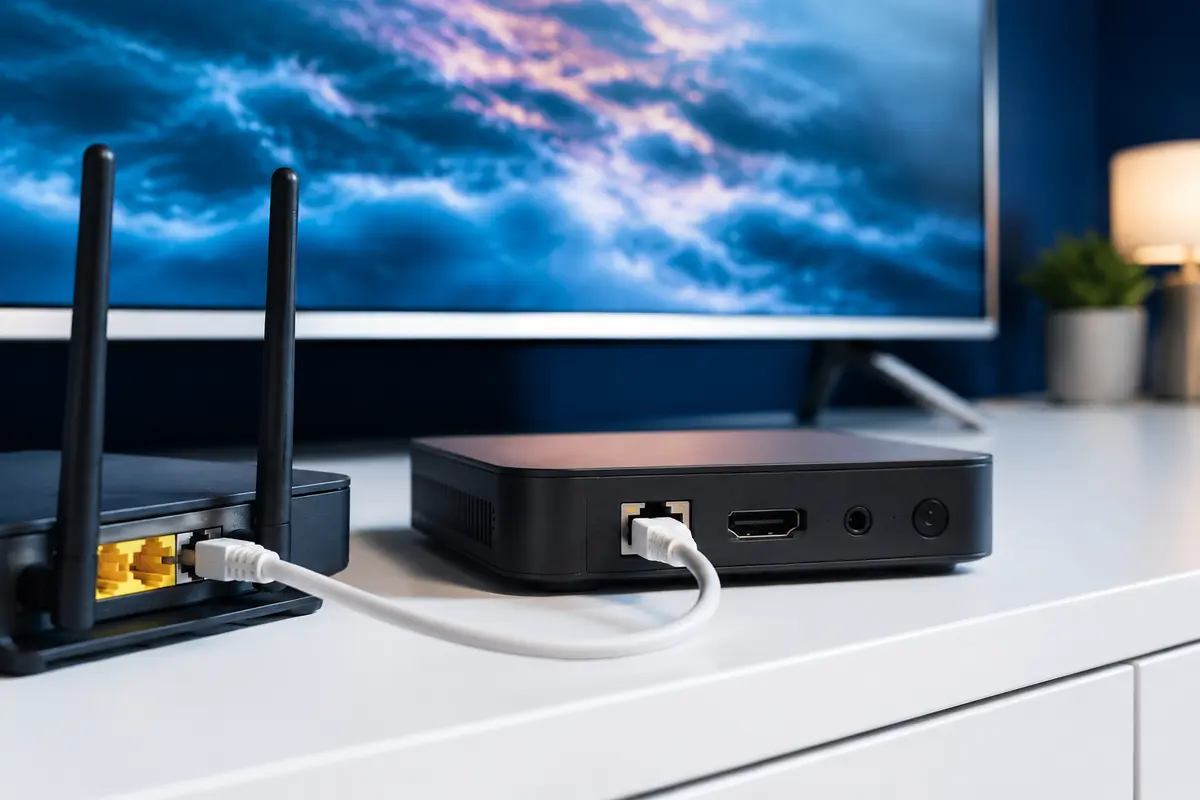
Use Ethernet where available or strong modern Wi-Fi. Match resolution to device capability and available bandwidth, and close background downloads. If one stream fails while others work, report the affected category and time instead of resetting the entire device.
Use Profiles and Favourites Carefully
Profiles and saved lists can improve navigation for a household. Their sync behaviour varies by player, so do not assume favourites will move automatically to another device or survive an app reinstall.
Maintain the Setup
Keep the operating system and player current, but record working settings before major updates. Remove old account details when a device is sold, returned or shared with someone outside the household.
Android TV Permission and Source Review
Open the application information page after installation and review storage, network and any other requested permissions. A television player should not need access to contacts or unrelated personal data. Prefer a verified store listing; if support supplies a direct package, confirm the source and checksum where available.
Turn off installation permission for the browser or downloader after the player is installed. This reduces the chance that another downloaded file is installed accidentally later.
- Publisher matches the expected developer
- Package came from an approved source
- Unneeded permissions denied
- Unknown-source permission disabled afterwards
Backup the Working Configuration Safely
Record non-secret settings such as decoder mode, EPG offset, buffer option and category preferences. Store credentials only in a trusted password manager, not in the same screenshot. If the player supports encrypted backup, understand where it is stored before enabling sync.
A major system update can reset defaults or change codec behaviour. After updating, test one known live source and on-demand title before changing settings, so you can tell whether the update itself caused the difference.
Only access content you are legally entitled to view. App, category, guide, quality and replay availability can change by device, region, source and account.