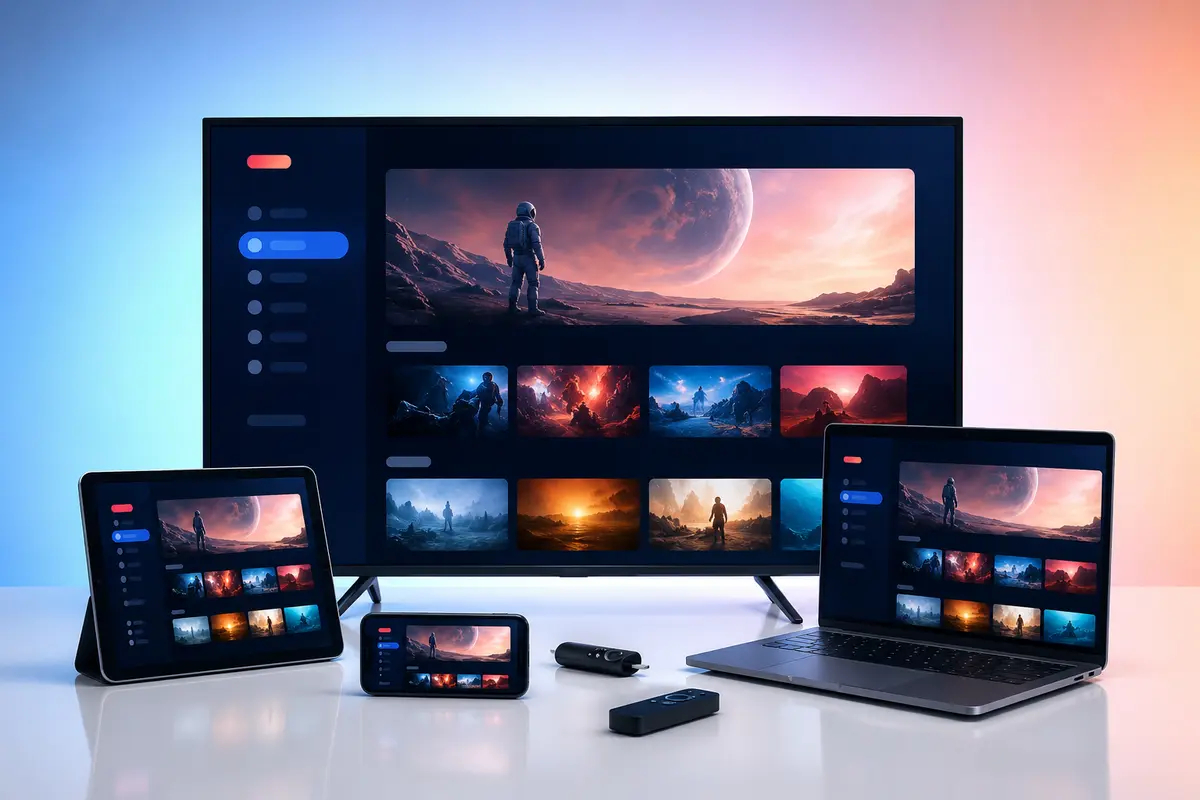
A Fire TV device can be a convenient way to use an IPTV subscription, but the setup has three separate parts: the account, the player app and the network. Treating them as one thing makes troubleshooting harder.
This guide covers the independent Sky Glass IPTV service described on this website. It does not refer to the official Sky Glass television product and does not imply a relationship with Sky Group. Only use account access for content you are legally entitled to view.
What You Need Before You Start
Have the exact Fire TV model, a stable internet connection, access to its normal app-installation method and the account details supplied after activation. Do not copy credentials into public notes or screenshots.
- Fire TV Stick, Fire TV Cube or compatible Fire TV television
- Compatible IPTV player available for the device
- Account username, password and server address or playlist URL
- Enough free storage for the player and guide data
- A television remote and access to network settings
Choose the Player Before Entering Credentials
An IPTV player is only the interface. It does not include a subscription by itself. Confirm which login method your account uses—typically a username/server form, playlist URL or portal—and choose a player that supports it.
App names, prices and availability can change by region and Fire OS version. Check the current app-store listing and any separate player licence before entering account details.
Install Through a Trusted Route
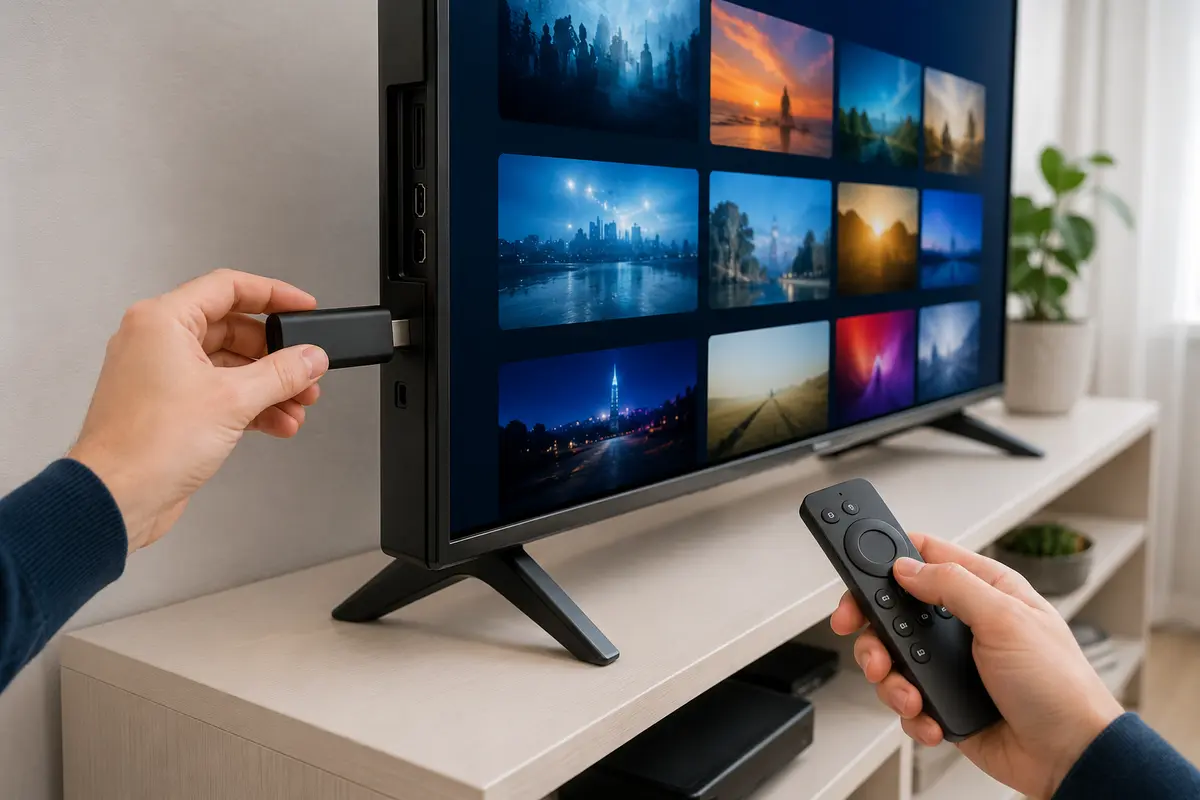
Use the Fire TV app store where a suitable player is available. If support provides another installation route, verify the file source and package name before allowing installation from outside the store. Avoid websites that bundle unknown utilities with a player.
- Confirm the publisher shown in the app listing
- Review requested permissions
- Install only the player you intend to use
- Disable unnecessary installation permissions afterwards
Add the Sky Glass IPTV Account
Open the player, select the login method confirmed for the account, and enter each value exactly. Server addresses are sensitive to missing characters, extra spaces and the difference between http and https.
Give the playlist a neutral household name. Do not use your password as the list name or share a photograph of the completed login screen.
Wait for the First Refresh
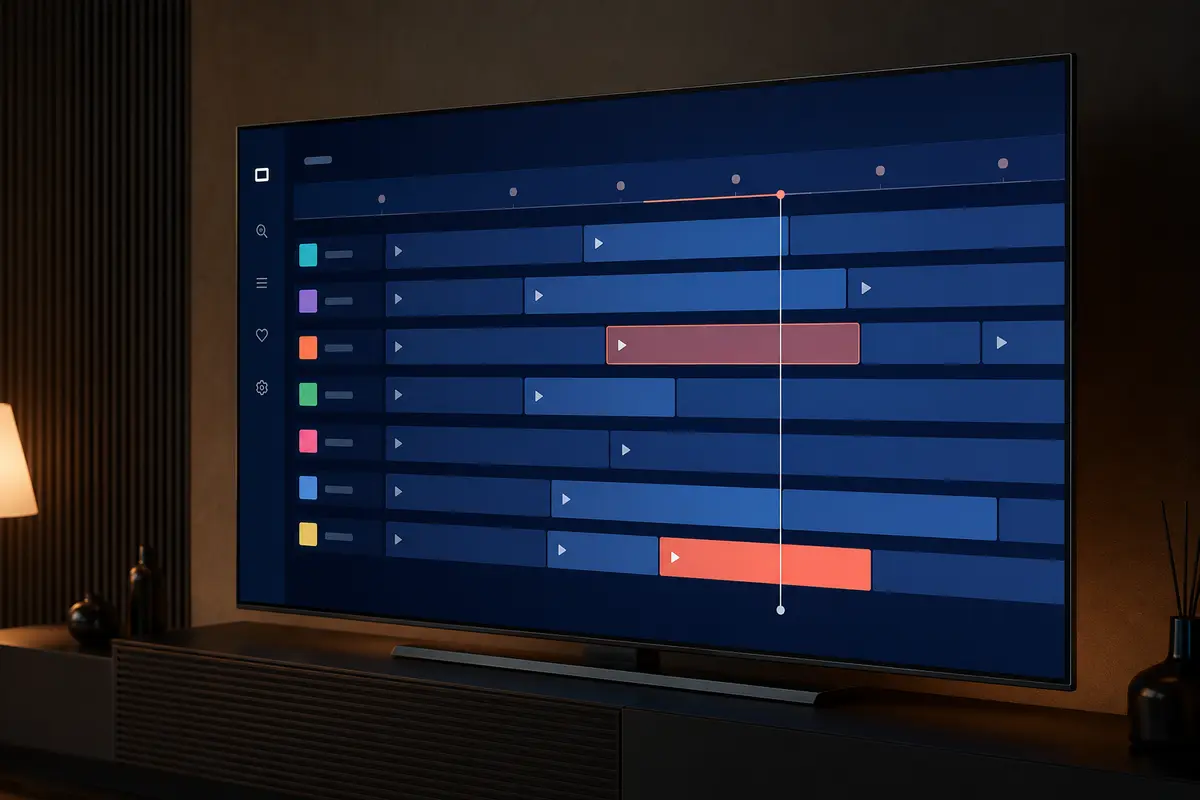
The initial load may include live groups, movies, series and EPG data. Let it complete before closing the app. If categories appear but the guide is blank, refresh EPG separately and confirm the device time zone is correct.
- Open one live channel from two or three categories
- Test one movie and one series episode
- Check audio and subtitle controls
- Open the guide and compare current time
- Restart the player once after the first full sync
Tune the Firestick for Stable Playback
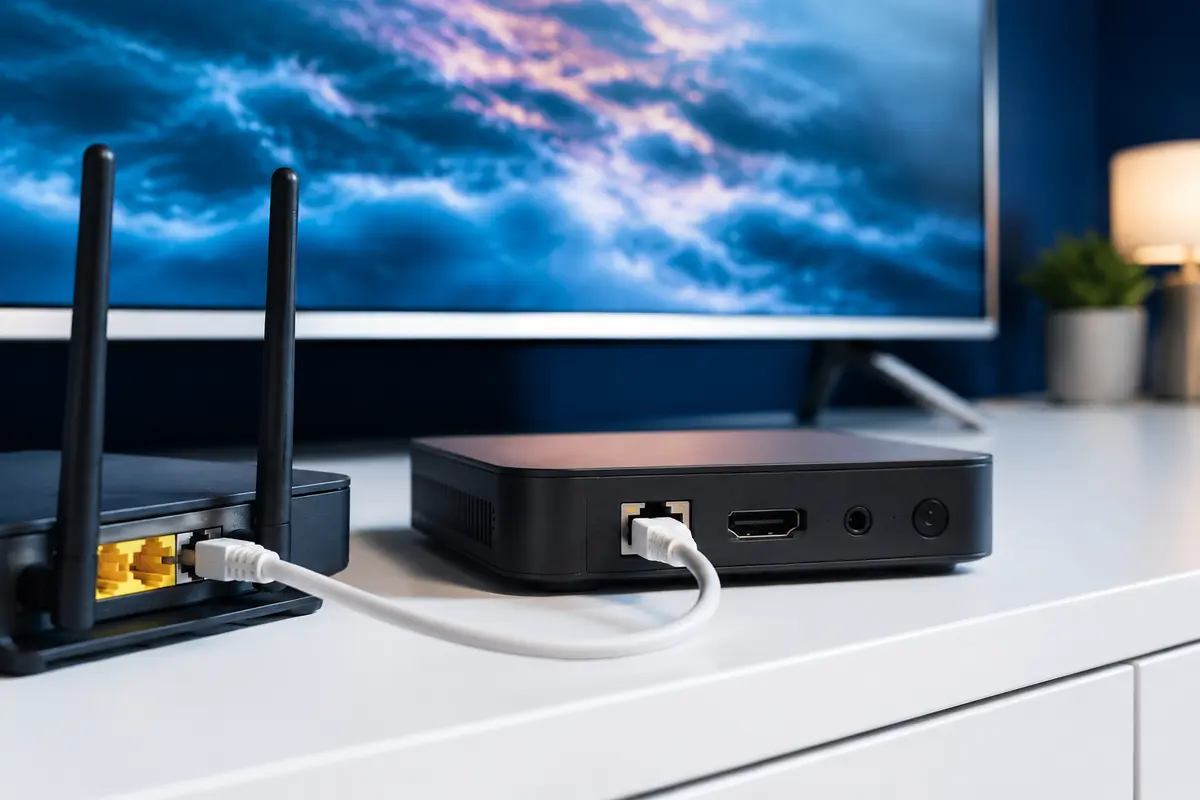
Use Ethernet through a compatible adapter where practical, or place the Fire TV device on a strong 5 GHz or 6 GHz Wi-Fi connection. A fast broadband package does not guarantee a clean wireless link behind a television.
Free storage, close unused apps, restart the router and Fire TV device, and choose a lower-quality stream when the hardware or network cannot decode a high-bitrate source consistently.
Know What the Trial Should Prove
Run the 24-hour trial on the same Firestick, player and network you will use after purchase. Test at a busy household time and during the type of live programming you care about. A short successful test on a phone does not prove that the television setup will behave the same way.
Firestick Troubleshooting Order
If playback fails, first test a different channel and a VOD title. Then restart the player, compare Wi-Fi with Ethernet if possible, refresh the account and check whether other services on the device work normally. Contact support with the Fire TV model, player version and exact error rather than only saying that it does not work.
A 15-Minute Firestick Verification Run
After the first sync, use the same short route every time: open the guide, play three unrelated live sources, switch to one film and one episode, change audio or subtitles where offered, save a favourite and restart the app. A repeatable route shows whether changes improve the whole setup or only one item.
Write down the player version and any decoder setting before changing it. If the device behaves normally after a restart, avoid clearing all application data because that also removes useful account and favourite information.
- Test with the normal television remote
- Compare one HD and one higher-quality source
- Check lip sync during speech
- Return from playback without force-closing the app
Fire TV Privacy and Maintenance
Review installation permissions after setup and disable any source that no longer needs them. Keep Fire OS and the player current, but avoid installing several near-identical players from unverified publishers. More apps consume storage and make it harder to identify which interface holds the active credentials.
Before selling or returning the Fire TV device, clear the player's application data and confirm that saved usernames, playlist addresses and portal details are gone. A factory reset is appropriate when ownership changes, not as the first response to an isolated playback fault.
Only access content you are legally entitled to view. App, category, guide, quality and replay availability can change by device, region, source and account.